

Chatlas, the Voice Atlas chatbot, can easily be integrated for you and your Atlas users on the business communication and collaboration platform, Slack.
⚠️ Admin access required
You need administrative privileges in your Slack Workspace to complete this setup.
Activate the Slack App in your Voice Atlas Account
- Go to the Voice Atlas Web App.
- Introduce your email and password into the form.
- Click “OPEN” on the Atlas for which you would like to enable a chatbot.
- Open the App tab and select Slack.
- Click Open and toggle the app to Active.
Create your Voice Atlas Chatbot Slack App for use in Workspace
For this integration, you must have Administrative privileges in your Slack Workspace in order to create a Slack Application. After you have activated the Slack Integration in your Voice Atlas account, keep the Voice Atlas Slack Integration window open while you create your Slack App and add your app details.
Step 1: After activating the Slack app in Voice Atlas, stay on the Integration tab to copy the callback URLs and add any domains where the widget will appear.
Then navigate to Slack Apps API to create your Voice Atlas chatbot App in Slack.
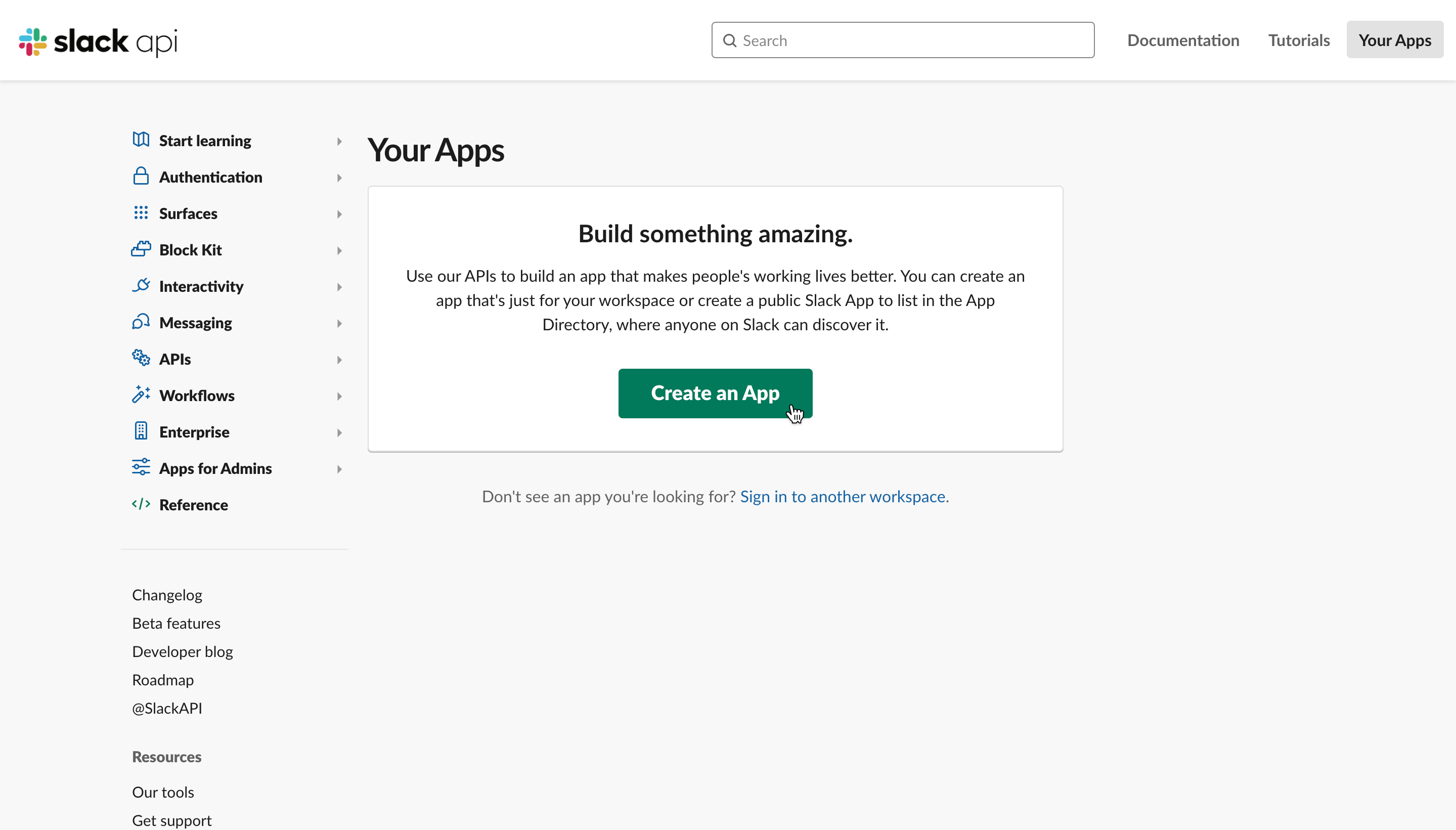
Step 2: Click on "Create an App" from the Slack API dashboard.
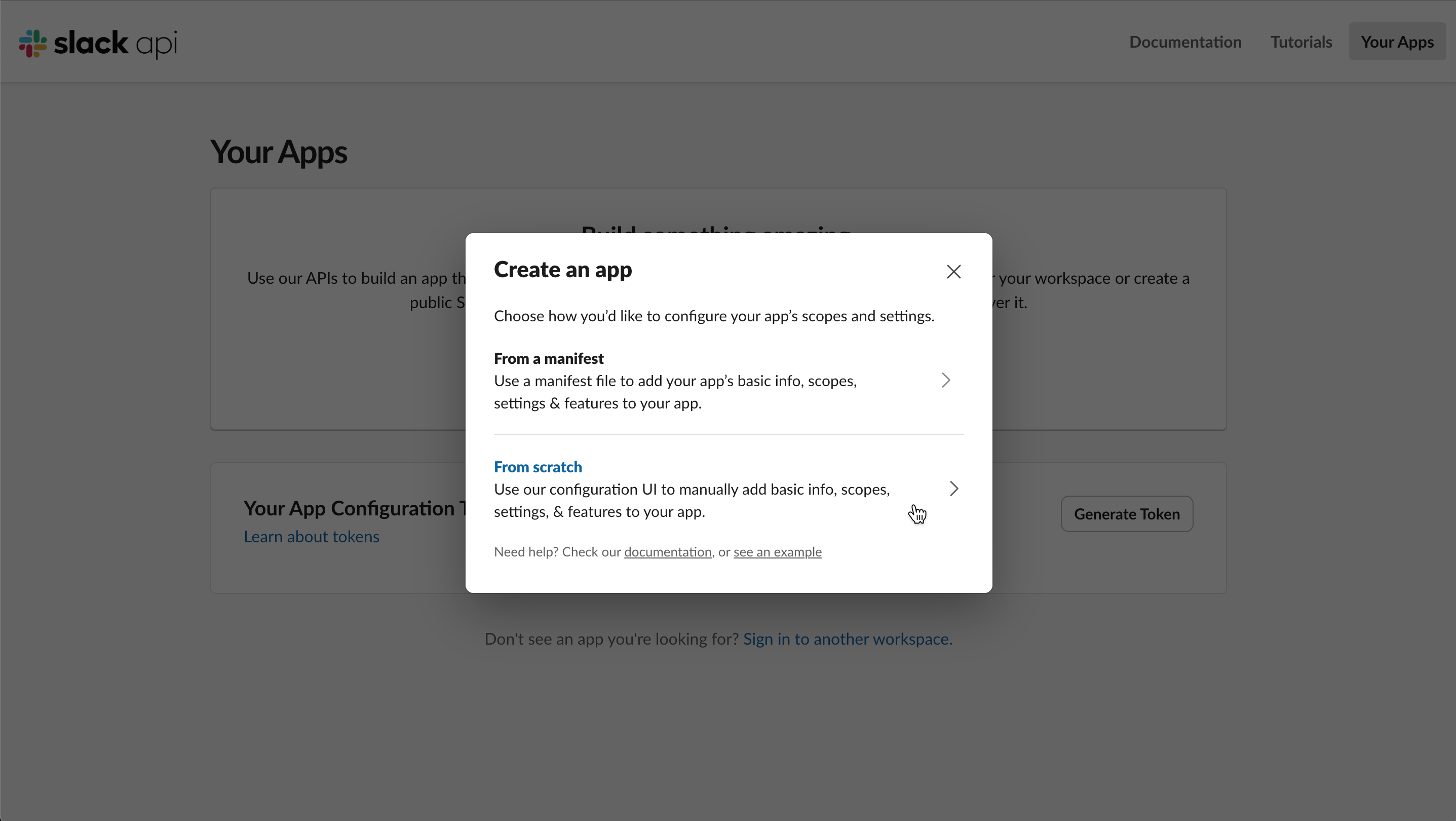
Step 3: Choose to create an app from scratch.
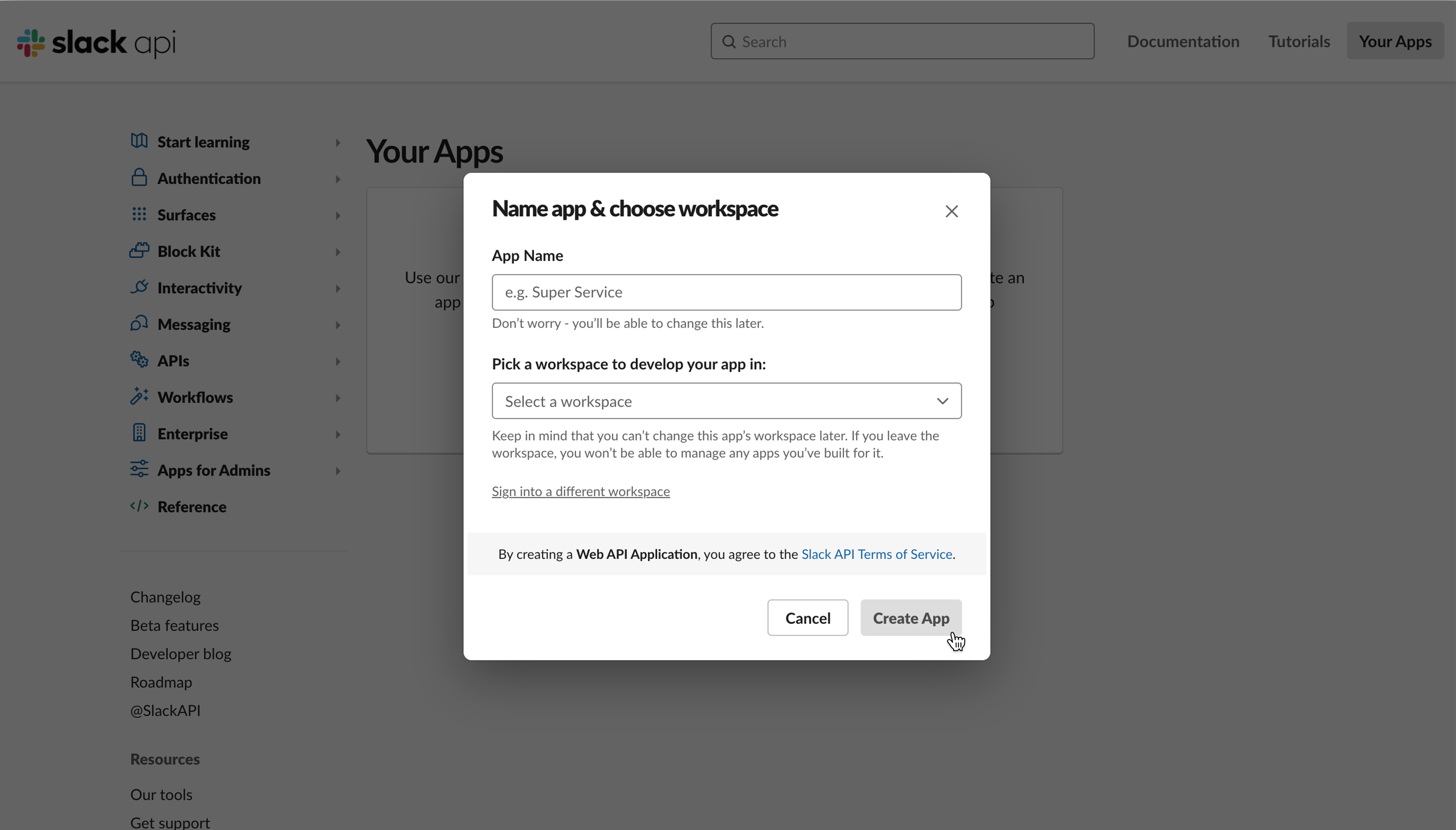
Step 4: Insert an “App Name” and then select from the “Development Slack Workspace” drop-down menu choose the Workspace where you want your app to be available. When finished click "Create App" to continue.
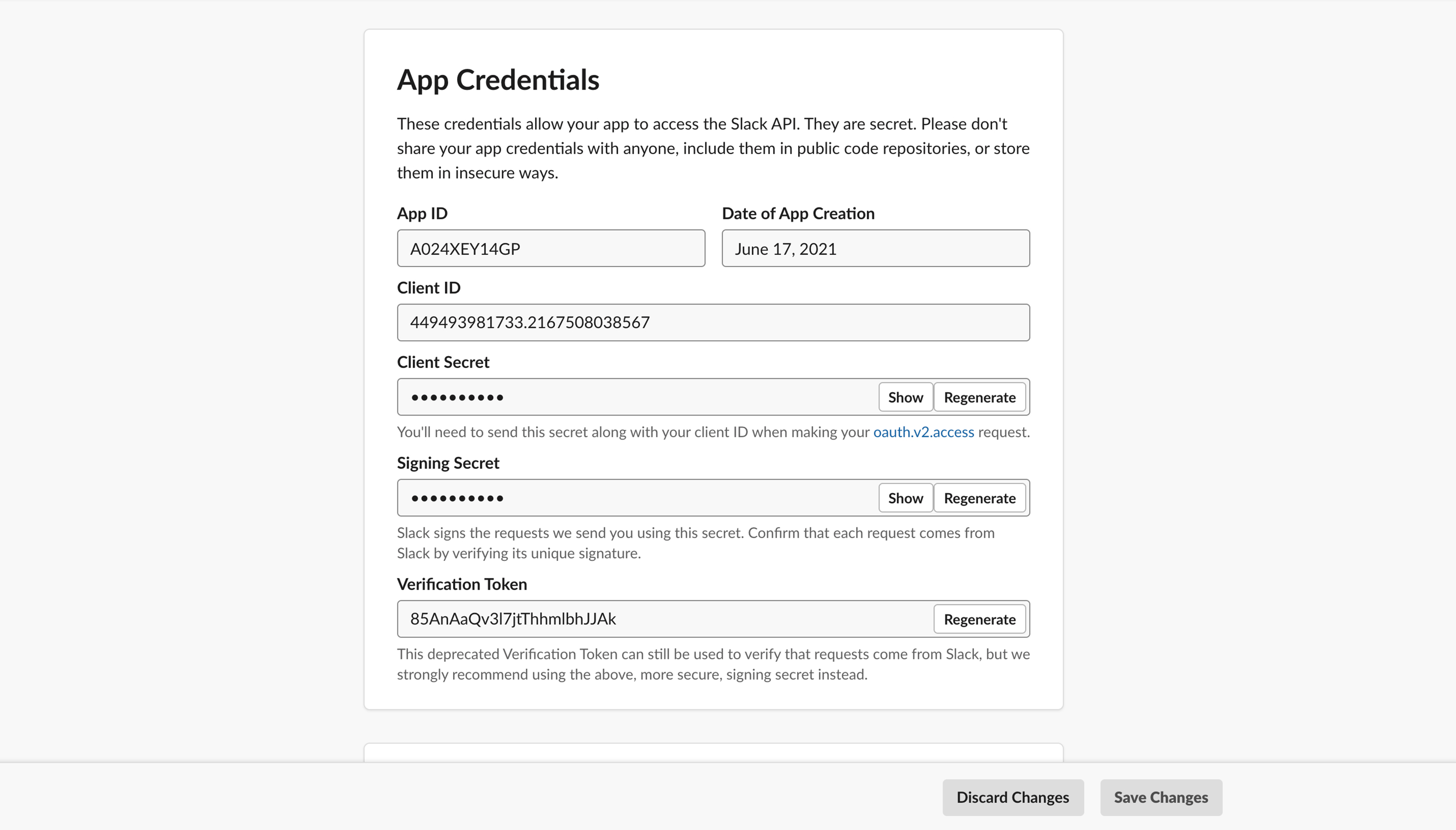
Step 5: Begin in the "Basic Information" section under "Settings" and scroll down to the "App Credentials". 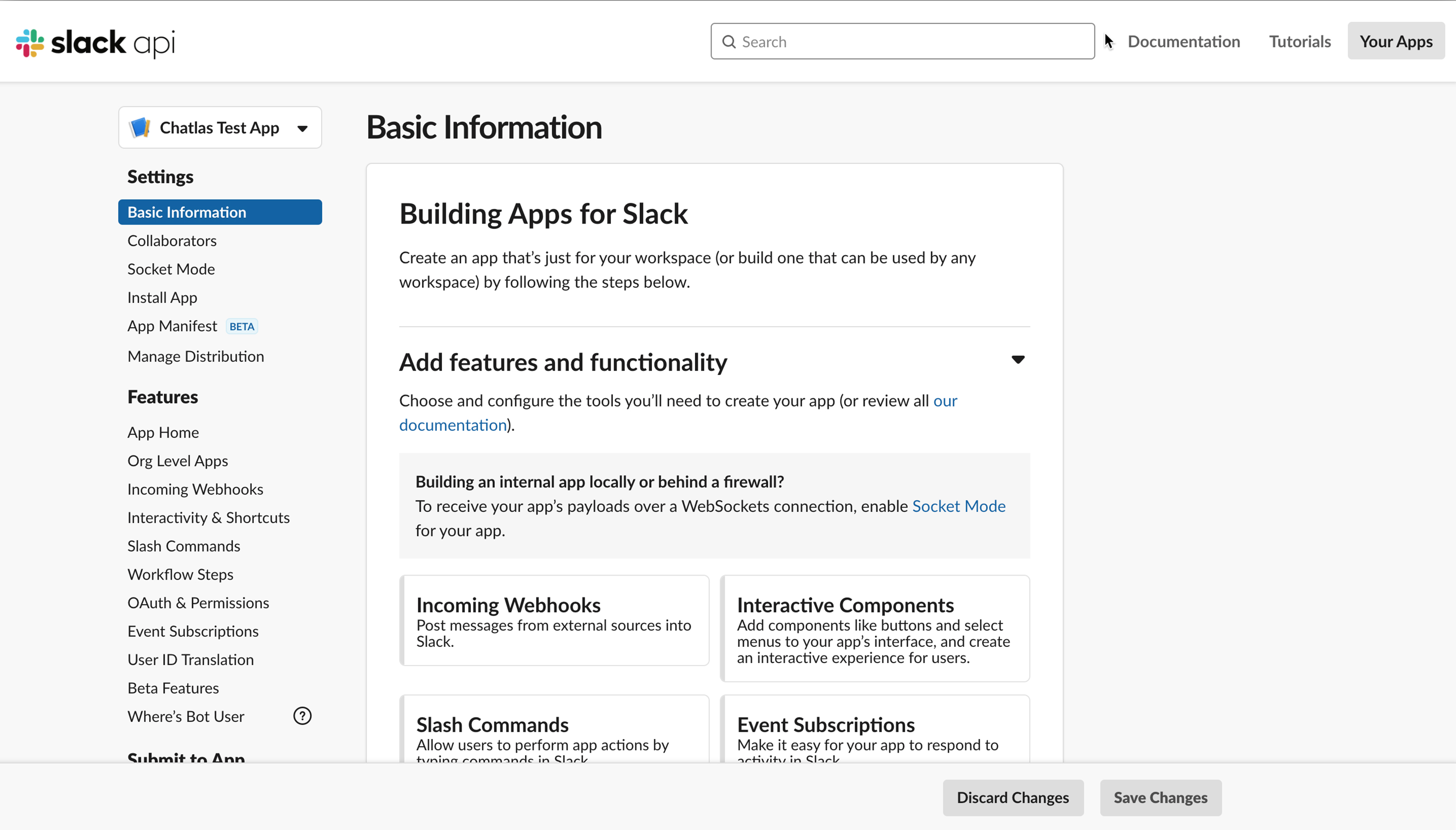
From the section “App Credentials”, first copy the “Client ID” then paste it under the "Integrations" section of the Voice Atlas Slack Integration set-up; then repeat this process by copying the “Client Secret” and the “Signing Secret”.

Optional (recommended): Return to the Slack App "Basic Information" section under "Settings" and scroll down to the "Display Information". Fill the “App name”, add a “Short description”, and upload an “App icon & Preview” (*must add background color). Click “Save Changes” to continue.

Step 6: On the left panel, locate the section “Features” and click on “Interactivity and Shortcuts”. In the sub-section “Interactivity” click on the toggle in the top, right hand-corner to become active. Then copy the Request URL in the Voice Atlas Slack Integration Set-up.

Paste the copied URL in “Request URL” box available in the Slack App API and click "SAVE CHANGES".

Step 7: On the left panel, locate the section “Features” and click on “OAuth & Permissions” and copy the Bot User QAuth Token.

Then paste the Bot User QAuth Token in the Slack Integration Set up on the Voice Atlas web app.

Next, in the sub-section “Scopes” under “Bot Token Scopes”, click on “Add an OAuth Scope” and add the following:
- app_mentions:read
- chat:write

Finally, return to the top of the page and click "Install to Workplace". You will be redirected to the Installation App page and will be requested to allow or deny the app the scopes or permissions setup above. Click on “Allow”.

Step 8: On the left panel, locate the section “Features” and click on “Event Subscriptions”. In the sub-section “Enable Events” click on the toggle in the top, right hand-corner to become active. Then, copy the Request URL from the Slack Set Up integration on Voice Atlas and paste it in “Request URL”. Right next to the “Request URL” you should see Verified ✓ indicating the verification was done successfully.

Then, right below in the “Subscribe to bot events” area, click on “Add Bot User Event” and add the following:
- app_home_opened
- app_mention
- message.im

Click on “Save Changes”.
Step 9: On the left panel, locate the section “Features” and click on “App Home”. In the sub-section “Your App’s Presence in Slack” toggle the “Always Show My Bot as Online” to become active.

Optionally, you can edit your “App Display Name”. Then, in the sub-section “Show Tabs” toggle the “Home Tab” to become active.

Step 10: Save ALL changes on both the Slack Integration Set Up on the Voice Atlas Web App and the Slack API and start using your chatbot right away!
🔒 Protect your secrets
Store the Client ID, Client Secret, Signing Secret, and Bot Token in your organization’s secret manager. Rotating them regularly reduces the blast radius if a credential leaks.